
Yealink T31W
Yealink phones › T31W
Yealink T31W Desk Phone
The Yealink T31W is the simplest desk phone Netexem installs on Wi-Fi: a backlit 2.3-inch screen, two line keys, dual-band Wi-Fi built in and HD voice for $60, or free with a service agreement, from Netexem in Tustin for businesses across Orange County and Southern California. Call 714.444.0550 for a quote.
It is the T31P with a radio inside, and our Top Pick for a basic desk that has no network cable. This page lists the specs, where it belongs, the few settings people look up, and how it compares with the T31P, the T34W and a cordless handset.
Reviewed by Joey B, Technician, Netexem · October 2026
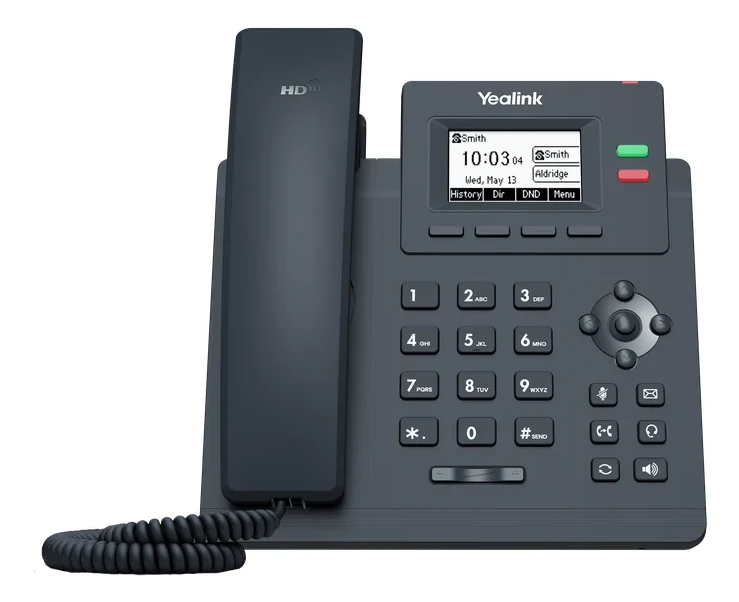
Yealink T31W at a glance
- Screen
- 2.3-inch greyscale display (132 x 64) with backlight
- Buttons
- 2 line keys with status lights, plus transfer, message, headset, redial, mute and speaker keys
- Wireless
- Built-in dual-band Wi-Fi (2.4 GHz and 5 GHz, 802.11ac); no Bluetooth
- Network
- Two 10/100 Ethernet ports, Power over Ethernet (PoE), for a desk that has a cable after all
- Calls
- Up to 2 phone lines on one set, local 5-way conference, HD voice
- Headsets
- RJ9 headset port plus EHS support for Yealink wireless headsets; no USB port
- Noise
- Smart Noise Filtering on the handset and full-duplex speakerphone
- Power
- 2 to 2.6 W on PoE; on Wi-Fi it runs from the 5 V power adapter
- Mounting
- Stand with two angles included, wall mount optional
Who the T31W is for
A reception counter in a leased suite with no cable run, a pop-up sales desk, a kitchen, a break room, a workshop bench or an exam room: places that need a phone where the only network is the office Wi-Fi. The backlit display shows who is calling, two line keys cover the main line and one more, and the headset port suits a counter that talks all day. A Wi-Fi desk that transfers calls or watches colleagues' lines wants the T34W or T73W; a person who walks the floor wants a cordless handset instead.
Yealink T31W quick guide
The steps people look up most, in plain words. Menu names match the T31W's own screen.
How to connect a Yealink T31W to Wi-Fi
- Go to Menu > Settings > Basic Settings > Wi-Fi.
- Set Wi-Fi to On and select Save. The phone scans for networks.
- Pick your network, select Connect, type the password and confirm. Check Wi-Fi Status in the same menu if you are unsure it connected.
On Wi-Fi the phone gets no power through a cable, so it needs the $5 power adapter. A Netexem T31W arrives with the office Wi-Fi already set when you tell us the network ahead of install day.
How to factory reset a Yealink T31W
- With the phone idle, press and hold the OK key until it asks whether to reset to factory settings, then confirm.
- From the menu instead: Menu > Settings > Advanced Settings (default password admin) > Reset Config > Reset to Factory Settings > Reset > OK.
- Leave it powered on until it has restarted completely.
Note: A reset also forgets the Wi-Fi network. A Netexem T31W sets itself up again once it is back on the network, by cable or after you re-enter the Wi-Fi password. Call 714.444.0550 first; most problems are fixed remotely.
How to find the IP address of a Yealink T31W
- With the phone idle, press the OK key, or go to Menu > Status.
- The IPv4 address is on the first line of the status screen, with the firmware version below it.
You only need this to open the phone's web page from a computer on the same network. On Netexem service we handle that for you.
How to change the ring volume and ringtone on a Yealink T31W
- While the phone is idle, press the volume key left or right to set how loud it rings; the screen shows the level.
- To pick a different ring, go to Menu > Settings > Basic Settings > Sound > Ring Tones and choose one with the up and down keys.
- Press Save. Silence it for a meeting with the DND soft key; press it again when you are back.
How to use a headset with a Yealink T31W
- Plug a wired headset into the RJ9 headset port on the back of the phone (the one with the headset icon), not the handset port.
- Tap the headset key once; while its light is on, every call goes to the headset instead of the handset. Tap it again to switch back.
- With a Yealink wireless headset, the EHS adapter lets the button on the headset answer and hang up.
No USB and no Bluetooth on this model: for those, see the T34W or T73W.
Voicemail, call forwarding, hold, conference calls and intercom work the same on every Netexem phone; see the Netexem phone system user guide.
The full Yealink manual covers every feature; the T31W datasheet lists the specifications. Netexem customers can simply call 714.444.0550 and we walk you through it.
Yealink T31W compared
T31W vs T31P
T31P: $50
The same phone without Wi-Fi, $10 less: the pick for a desk that has a network cable.
T31W vs T34W
T34W: $80
$20 more buys a colour screen, 4 buttons, Gigabit ports and a USB port; the better pick for a desk that transfers calls.
T31W vs W70P
W70P: $129
A cordless base and handset instead of a desk phone: for a warehouse or shop where the person, not the desk, needs the phone.
See every model side by side on the Yealink phones page.
Netexem service and what's included
$60 one-time per phone on the month-to-month plan, or included free when you sign a service agreement. It runs on Netexem's business phone service at $19.99 or $29.99 per user per month, fixed, with no long-term contract. Installation, staff training and number porting are free, and every install carries a 30-day money-back guarantee from the install date. The pricing page has the full breakdown.
- In the box: the phone, handset and cord, stand and quick start guide. Netexem adds a network cable or the $5 power adapter as the desk needs; the wall-mount bracket is optional.
- Power: through the network cable (PoE), which we recommend. A power adapter is $5 and is needed if the phone runs on Wi-Fi.
- Warranty: Yealink's 1-year limited manufacturer warranty, extended by a Netexem service agreement; we swap a faulty phone for you.
- Delivery: we bring the phones to the install, or ship them to your office anywhere in the US if you install yourself.
- Already own T31Ws: bring them: they work on Netexem service as they are, and our service agreement covers them too.
Details on all of this are in the phone system user guide.
Yealink T31W questions
How much is the Yealink T31W from Netexem?
$60 one-time per phone on the month-to-month plan, or included free with a service agreement. Phone service is $19.99 or $29.99 per user per month, fixed, with free installation, training and number porting and no long-term contract.
What is the difference between the Yealink T31W and T31P?
Wi-Fi. The T31W has dual-band Wi-Fi built in, so it works on a desk with no network cable; the T31P is the same 2.3-inch phone for a wired desk and costs $10 less. Both have 2 line keys, 2 accounts, PoE and HD voice.
Does the Yealink T31W need a power adapter on Wi-Fi?
Yes. Power over Ethernet only works through a network cable, so on Wi-Fi the phone runs from the 5 V power adapter, which Netexem supplies for $5. Plugged into a PoE switch instead, it needs no adapter.
What is the default password on a Yealink T31W?
The factory default admin password is admin, for the phone's Advanced Settings menu and its web page. On Netexem service the default voicemail password is 1234#; change it after your first login.
Who installs the Yealink T31W?
A Netexem technician from our Tustin office installs it on site anywhere in Orange County and Southern California and trains your staff on install day. If you install yourself, we ship the phones to your office anywhere in the US; the phone sets itself up once it is on your network and we guide you by phone or screen share.