
Yealink T54W
Yealink phones › T54W
Yealink T54W Desk Phone
The Yealink T54W is a 4.3-inch colour desk phone with 10 programmable buttons, built-in Wi-Fi and Bluetooth, supported by Netexem in Tustin for offices across Orange County and Southern California. Already have T54Ws? Keep them: they work on Netexem service with no upgrade needed. Call 714.444.0550.
It is the workhorse of Yealink's T5 series: big enough to see who is calling and which line is busy, wireless when the desk has no network cable, and simple enough that new staff use it on day one. This page covers what it does, who it suits, and how to do the everyday tasks people most often look up.
Buying new? The T54W is now a special order: call 714.444.0550 and we source it for you ($169). We support every T54W already on a desk, and for new desks we recommend the Yealink T74W, its current equivalent at $169.
Reviewed by Joey B, Technician, Netexem · October 2026
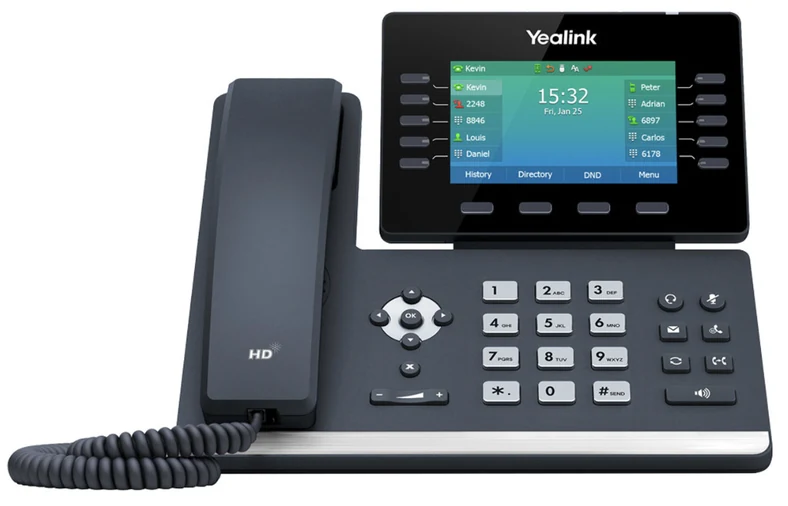
Yealink T54W at a glance
- Screen
- 4.3-inch colour display (480 x 272), adjustable viewing angle
- Buttons
- 10 programmable buttons with status lights
- Wireless
- Built-in dual-band Wi-Fi (2.4 GHz and 5 GHz) and Bluetooth 4.2
- Network
- Two Gigabit Ethernet ports, Power over Ethernet (PoE)
- USB
- USB 2.0 for a USB headset, call recording to a flash drive, or up to three EXP50 key modules
- Calls
- Up to 16 phone lines on one set, 10-way conference, HD voice with noise filtering
- Handset
- Hearing-aid compatible (HAC)
- Mounting
- Desk stand included, wall mount optional
Who the T54W is for
Front desks, managers and anyone who handles several lines or transfers calls all day. The colour screen shows the caller's name and which colleagues are on the phone, and the 10 programmable buttons put the people you transfer to most one press away. Offices that run out of network ports, or add a desk in a room with no cable, use its Wi-Fi. Staff who want a wireless headset pair it over Bluetooth instead of buying an adapter. For a basic desk that only makes and takes calls, a cheaper model does the job; see the comparison below.
Yealink T54W quick guide
The steps people look up most, in plain words. Menu names match the T54W's own screen.
How to transfer a call on a Yealink T54W
- During the call, press the TRANSFER (Tran) key.
- Dial the destination: an extension such as 1001, or a full number such as 7144440550.
- To hand it over straight away (blind transfer), press B Transfer. To announce the caller first, press OK, wait for the answer, then press TRANSFER again.
Hanging up the handset also completes the transfer. With colleague keys set up, one press of their key during the call transfers it.
How to factory reset a Yealink T54W
- With the phone idle, press and hold the OK key until the phone asks whether to reset to factory settings.
- Select OK. The phone restarts and shows "Welcome, Initializing" while it resets.
- From the menu instead: Menu > Advanced (default password admin) > Reset Config > Reset to Factory Settings > OK.
A reset erases the phone's settings. On a Netexem phone, call us first at 714.444.0550: we can usually fix the problem remotely, and we re-provision the phone for you if a reset is needed.
Note: Netexem phones are auto-provisioned: after a factory reset, a Netexem phone connected to the internet downloads its settings again by itself and comes back with your extension, keys and voicemail. On another provider's service a reset may leave the phone blank until someone sets it up again, so check with them first.
How to connect a Yealink T54W to Wi-Fi
- Go to Menu > Basic > Wi-Fi.
- Set Wi-Fi to On and select Save. The phone scans for networks.
- Highlight your network, select Connect, type the Wi-Fi password and select Connect again. A tick appears next to the network when it is connected.
Wi-Fi is handy where there is no network cable, but a cable is still the most reliable choice for a busy desk. A phone on Wi-Fi needs a power adapter ($5), since it gets no power through a cable.
How to pair a Bluetooth headset with a Yealink T54W
- Put the headset in pairing mode.
- On the phone go to Menu > Basic > Bluetooth and select Scan.
- Highlight the headset and select Connect. The Bluetooth icon appears at the top of the screen.
Voicemail, call forwarding, hold, conference calls and intercom work the same on every Netexem phone; see the Netexem phone system user guide.
The full Yealink manual covers every feature; the T54W datasheet lists the specifications. Netexem customers can simply call 714.444.0550 and we walk you through it.
Yealink T54W compared
T54W vs T74W
T74W: $169
Netexem's recommended replacement: the same 4.3-inch colour screen, 10 programmable buttons, Wi-Fi and Bluetooth, in the current T7 series.
T54W vs T73W
T73W: $119
A smaller 2.8-inch colour screen with Wi-Fi, Bluetooth and 8 programmable buttons, for a desk that needs Wi-Fi at the lowest price.
T54W vs T85W
T85W: $199
A bigger 5.5-inch colour screen and 12 programmable buttons, for a manager or a busy shared desk.
See every model side by side on the Yealink phones page.
Netexem service and what's included
Your T54Ws keep working when you switch to Netexem; there is no need to buy new phones. It runs on Netexem's business phone service at $19.99 or $29.99 per user per month, fixed, with no long-term contract. Installation, staff training and number porting are free, and every install carries a 30-day money-back guarantee from the install date. The pricing page has the full breakdown.
- Power: through the network cable (PoE), which we recommend. A power adapter is $5 and is needed if the phone runs on Wi-Fi.
- Warranty: Netexem's service agreement covers your T54Ws, including ones you bring; we swap a faulty phone for you.
- Bring your own T54Ws: they work on Netexem service as they are, and our service agreement covers them too. When one fails, we replace it with a T74W.
Details on all of this are in the phone system user guide.
Yealink T54W questions
Can I keep my Yealink T54W phones if I switch to Netexem?
Yes. T54Ws work on Netexem service as they are, with no upgrade needed, and a Netexem service agreement covers them like phones we supply. Service is $19.99 or $29.99 per user per month, fixed, with free setup, training and number porting and no long-term contract.
Does the Yealink T54W have Wi-Fi?
Yes. It has built-in dual-band Wi-Fi (2.4 GHz and 5 GHz) and Bluetooth 4.2, so it can work where there is no network cable and pair with a Bluetooth headset.
What is the default password on a Yealink T54W?
The factory default admin password is admin, for the phone's Advanced menu and its web page. On Netexem service the default voicemail password is 1234#; change it after your first login. Phones Netexem installs are set up and locked by us; call 714.444.0550 if you need a setting changed.
Is the Yealink T54W discontinued?
Not officially: the T54W is not on Yealink's public end-of-life list as of October 2026, but Netexem now treats the whole T5 series as a special order ($169, call us). We keep supporting every T54W in use, and on a service agreement we replace a failed one with the Yealink T74W, its current equivalent.
Who sets up the Yealink T54W on Netexem service?
A Netexem technician from our Tustin office installs and configures it on site, anywhere in Orange County and Southern California, usually in one to four hours for a whole office, and trains your staff on install day. Prefer to install it yourself? Many customers do: the phone sets itself up when you plug it in, and we guide you by phone or screen share, send a step-by-step setup sheet, and ship the phones to your office anywhere in the US.